App Accessibility and the ADA: A WCAG Checklist Before You Publish
Want to build your own app?
Start Building FreeShort answer: No federal regulation spells out a technical accessibility standard for a private business's app, but the Americans with Disabilities Act (ADA) still expects the goods and services you offer to the public, online included, to be accessible to people with disabilities. In practice, most businesses use the Web Content Accessibility Guidelines (WCAG) at Level AA as the yardstick. The checklist below turns that into checks you can run on your own phone before you publish, with tools that are already built into iOS and Android.
This is a practical guide, not legal advice. If you have received a demand letter or build apps for a government agency, talk to a lawyer who handles ADA matters.
What the ADA actually says about apps
The ADA covers two groups that matter for app owners:
- Businesses open to the public (Title III). Restaurants, salons, gyms, shops, clinics and similar businesses. The Department of Justice's 2022 guidance on web accessibility says the department "does not have a regulation setting out detailed standards," and that businesses have flexibility in how they comply. It also says they still must make the programs, services and goods they offer online accessible, and it points to WCAG and the federal Section 508 Standards as helpful guidance. That guidance is written about websites, but the same duties of nondiscrimination and effective communication are why many businesses hold their apps to the same bar.
- State and local governments (Title II). Here there is a firm rule. A DOJ rule published on 24 April 2024 sets specific requirements for the web content and mobile apps of state and local governments, based on WCAG 2.1 Level AA. On 20 April 2026, an interim final rule moved the compliance dates: 26 April 2027 for entities serving a population of 50,000 or more, and 26 April 2028 for smaller ones and special districts.
The Title II dates matter to more small businesses than you might think. If you build or run an app for a city department, a public school, a public library or a parks program, or you are a contractor or nonprofit delivering a public service for one, the rule says the government has to make sure its contractors follow Title II too.
Apple now shows accessibility on your App Store page
There is also a store-side reason to care. Apple has added Accessibility Nutrition Labels to App Store product pages. They show on devices running iOS 26, iPadOS 26 and the other 26-series systems, and they tell shoppers whether your app supports features such as VoiceOver, Voice Control, Larger Text, Dark Interface, Differentiate Without Color Alone, Sufficient Contrast, Reduced Motion, Captions and Audio Descriptions.
Three details from Apple's App Store Connect Help are worth knowing:
- Filling in the labels is voluntary for now, but Apple says that over time you will be required to share accessibility details to submit new apps and app updates.
- If you leave them blank, the section still appears on your product page and says you have not indicated support yet.
- You may only claim a feature if people can complete all of your app's common tasks with it. Apple also uses the labels in search, so an app that honestly supports Larger Text can be treated as more relevant for searches like "booking app with larger text."
Add this step to your App Store submission routine so it does not catch you out later.
The pre-publish accessibility checklist
Work through these on a real phone, using the core tasks of your app: for example, browse the menu and place an order, book an appointment, or sign up and log in.
1. Screen reader: every control has a name
- Turn on VoiceOver (iPhone: Settings, then Accessibility) and TalkBack (Android: Settings, then Accessibility). Swipe through each screen.
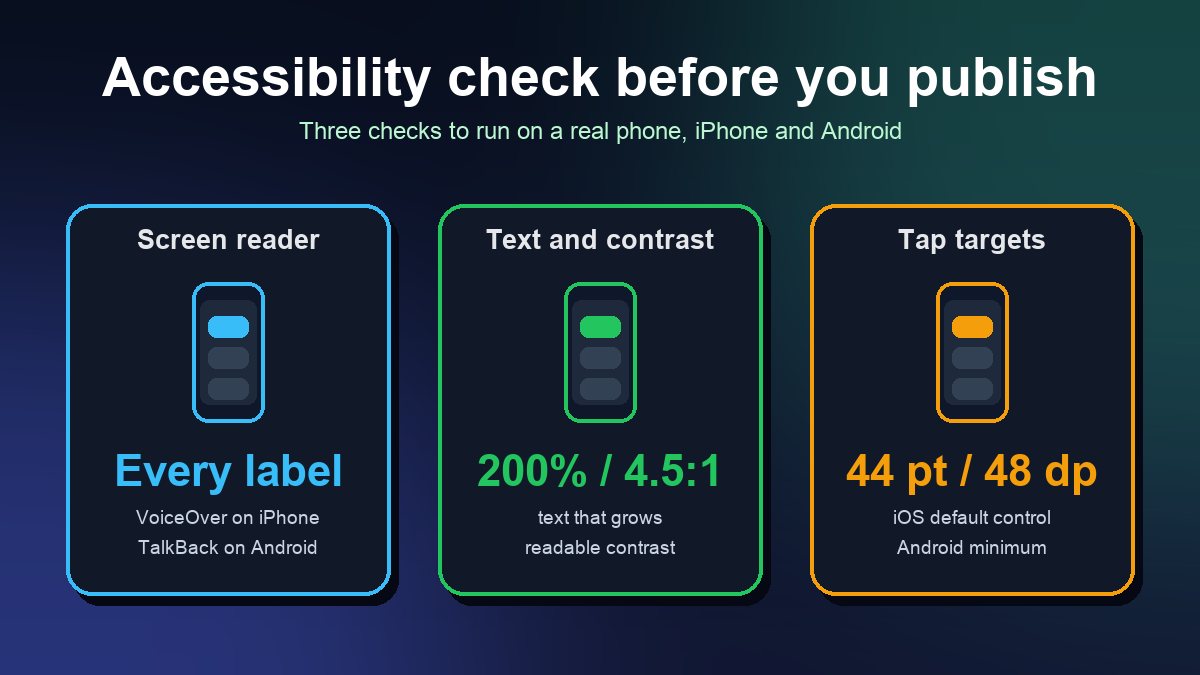
- Every button should be read with a clear purpose: "Add to cart," not "button" or an icon file name. Android's developer guide calls this the element's content description; on iOS it is the accessibility label.
- Images that carry information (a menu photo with a price, a chart) need a text description. Purely decorative images should be skipped by the screen reader.
- The reading order should follow the visual order, and pop-ups should be announced and easy to close.
2. Text that grows
- Set the phone's text size to the largest setting and reopen the app. Apple recommends letting people enlarge text by at least 200 percent, which its Dynamic Type setting supports.
- Check that text wraps instead of being cut off, and that buttons stay usable when the words get bigger.
3. Contrast and color
- Normal-size text needs a contrast ratio of at least 4.5:1 against its background; larger text at least 3:1. These are the WCAG AA figures, and Android's guidance uses the same numbers.
- Never use color alone to carry meaning. A required field marked only in red, or an "available" slot shown only in green, needs a word or icon as well.
- Check both light and dark mode if your app supports them.
4. Buttons big enough to tap
- Apple's Human Interface Guidelines give a default control size of 44 x 44 points on iPhone; Android recommends touch targets of at least 48 x 48 dp.
- Leave space between controls. Small icons crammed into a corner are a common failure for people with tremors or limited dexterity.
5. Forms people can finish
- Every field has a visible label that the screen reader also reads, not just placeholder text that disappears when typing starts.
- Errors say what went wrong and how to fix it ("Enter a 10-digit phone number"), and are announced, not just shown as a red outline.
- Log-in and checkout do not depend on a timed step people cannot extend.
6. Video, audio and motion
- Videos with speech have captions. Promo videos with important visual information need a description too.
- Turn on Reduce Motion and check that big animations calm down. Nothing should flash rapidly.
How to test in about 30 minutes
- Pick three core tasks, the ones that make you money or save staff time.
- VoiceOver pass: complete each task on an iPhone using VoiceOver only. Note every unlabeled button and every point where you got stuck.
- TalkBack pass: repeat on Android.
- Automated scan on Android: Google's free Accessibility Scanner app checks content labels, touch target size, clickable items, and text and image contrast on each screen. Google notes that it does not replace manual testing.
- Largest text size and Reduce Motion: repeat the tasks with both switched on.
- Fix, retest, then record what you support so you can fill in Apple's labels honestly.
If you have a developer, Xcode's Accessibility Inspector and Android Studio's lint checks will catch many label and contrast problems earlier. Even then, keep the manual pass, because automated tools cannot tell you whether a task makes sense when heard instead of seen.
Building on a no-code platform?
App builders handle the underlying code, so some items are in your hands and some are not:
- Usually yours: theme colors and contrast, font sizes, button text, image descriptions (where the builder offers an alt or description field), captions on uploaded videos, form labels and error wording.
- Usually the builder's: how its components report themselves to VoiceOver and TalkBack, support for system text sizes, and focus order inside complex widgets.
Before committing to a platform, ask the vendor whether its published apps support VoiceOver, TalkBack and Dynamic Type, then build a two-screen test app and run the checks above. It is far cheaper than finding out after launch. Our guide to building a mobile app without coding walks through the build itself, and the app builder comparison helps you shortlist tools.
Publish an accessibility statement
A short accessibility page on your website helps users and gives you a page to use as Apple's optional accessibility URL. Keep it factual:
- the standard you aim for (for example, WCAG 2.1 Level AA);
- the accessibility features the app supports, and any known gaps you are working on;
- a way to report a problem and get help, such as an email address or phone number, with a realistic response time.
Do not claim full compliance unless you have tested for it. An honest statement plus a working contact route is more useful to customers than a badge.
Where this fits in your launch
Accessibility is easiest when it is part of the normal build, not a fix after complaints. Add the checks above to your app launch checklist, run them again after every major update, and keep the results next to your store listing details for both the App Store and Google Play. Customers who use screen readers, larger text or switch controls are customers like any other, and an app they can actually use is one they will keep.
Sources: US Department of Justice, Guidance on Web Accessibility and the ADA (18 March 2022) and Fact Sheet: New Rule on the Accessibility of Web Content and Mobile Apps Provided by State and Local Governments (including the 20 April 2026 compliance-date extension); Apple App Store Connect Help, Overview of Accessibility Nutrition Labels; Apple Human Interface Guidelines: Accessibility; Android Developers, Make apps more accessible; Google, Get started with Accessibility Scanner; W3C, Web Content Accessibility Guidelines (WCAG) 2.2. All pages checked 26 October 2026.
Frequently asked questions
Does the ADA apply to my small business's app?
If your business is open to the public, the ADA's Title III duties of nondiscrimination and effective communication apply to the goods and services you offer, and Department of Justice guidance says that includes what you provide online. No DOJ regulation sets a detailed technical standard for private businesses, so most use WCAG Level AA as the benchmark.
Should I aim for WCAG 2.1 or WCAG 2.2?
The 2024 Title II rule for state and local governments uses WCAG 2.1 Level AA. WCAG 2.2 is the newest W3C version and builds on 2.1 with additional success criteria, so 2.2 Level AA is a sensible target for a new app.
Can an accessibility overlay or widget make my app compliant?
Overlay scripts are made for websites and do not change how a native iOS or Android app works with VoiceOver or TalkBack. Accessibility in an app comes from its own labels, layouts and controls, so fixes have to be made in the app itself or in your app builder.